Specialised partner in LED vehicle lighting

The short answer
In this article, we explain how to connect safety warning lights, such as flashing beacons, warning lights and other work lights, to a controller. With the TRALERT® control units for four or eight circuits, you benefit from seamless operation and app control. This allows you to operate the signalling lights from the cab and, depending on your installation, also switch on a beacon bar, work lights or lightbar .
Would you prefer to watch a video with an explanation?
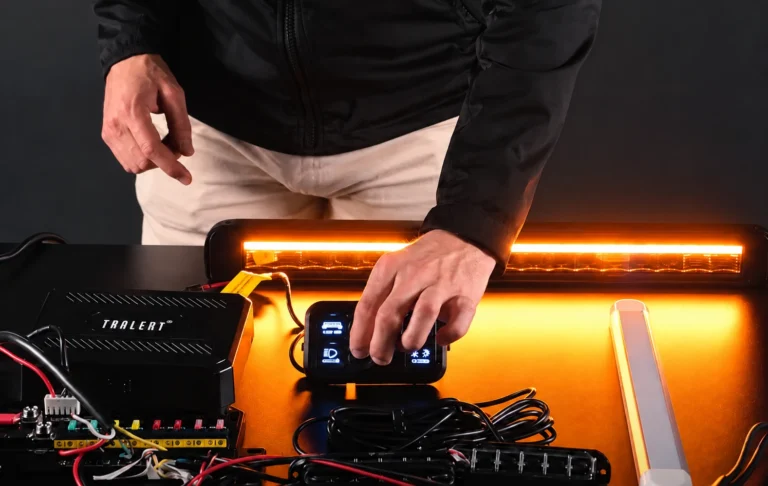
Take a look at the video below, in which our TRALERT® specialist demonstrates a complete setup featuring warning lights, work lights, interior lighting and a multifunctional lightbar. You’ll see how functions are connected to separate circuits and how two circuits are controlled as a group via the app.
You can control your safety lighting via a controller. The controller is part of a complete control kit comprising a control box to which you connect the light functions, and a panel used to switch those circuits on and off. You can control the connected functions via the app and configure the button settings.
For example, it is possible to operate a flashing light and a strobe light assembly separately, whilst work lights are connected to their own circuit. This is particularly relevant for roadside work: warning lights alert others to the situation, whilst work lights illuminate the work area. Determine in advance which functions are required and permitted at each stage of the work.
The diagram illustrates how the controls work. For mounting in a vehicle, ensure that the connections, load and circuitry are compatible with the lights used and the chosen control unit model.
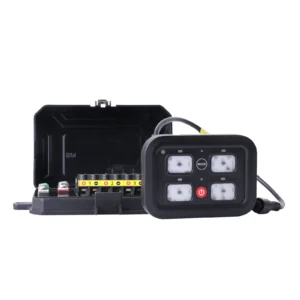
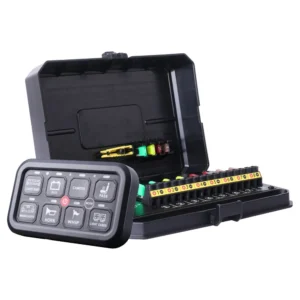
How many light functions do you want to control individually? This determines whether you need a 4-PAD or an 8-PAD control panel. With the 4-PAD, you can control four circuits, for example a flashing light, a group of strobe lights, a work light and an additional function. The 8-PAD offers eight circuits and is suitable if you are connecting multiple lighting groups or a multi-function ‘ lightbar ’.
Below, we explain how to connect safety warning lights to a controller. For regulations regarding the use of flashing beacons, warning lights and other signalling devices, please refer to our knowledge articles on safety warning lights on vehicles and the use of orange flashing beacons.
First, make a list of the functions you wish to control individually. The number of lights is not the same as the number of circuits required. Several lights can shape a single lighting group if the connection and load allow it. Conversely, a single multifunctional light can use several circuits.
| Example function | Possible layout | Checks before connection |
|---|---|---|
| Examplefunction: Rotating beacon | Possible layout: Dedicated circuit for the warning light. | Checks before connection: Supplyvoltage, power consumption and any additional function inputs. |
| Example feature: LED warning lights | Possible configuration: Oneor more groups, depending on the desired control. | Checks before connection: Circuit load and compatibility during synchronisation. |
| Examplefunction: Rotating beacon | Possible layout: Power supplyand additional functions as shown in the scheme. | Check before connection: Whether a specific controller is required for the desired functions. |
| Examplefunction: Work lights | Possible configuration: For example, controlling the left and right sides separately. | Checks before connection: Number of lights, power consumption and desired operating zones. |
| Examplefunction: Multifunctional lightbar | Possible configuration: Separatecircuits for supported light functions. | Checks before connection: Function wires, shared mass and permitted combinations. |
Choose the CTRL-4PAD or CTRL-8PAD based on this layout. Four or eight circuits indicate how many functions you can switch individually; the number of circuits does not in itself determine how many lights you can connect.
Both models operate on 12–24V. You should also check the permitted voltage of each connected light. Calculate the load of the entire lighting group for each circuit and also check the total load when several groups are used simultaneously.
Observe the limit per output and the total limit of the control unit separately. The values vary by model. The sum of all circuit values does not mean that you may use that load simultaneously. Follow the current manual for the main power supply, protection, cables and connection points.
Also ensure that the lamp wiring and connectors are suited to the current, cable length and installation environment. A fuse rating does not constitute advice on cable thickness. Read more about calculating cable thickness for vehicle lighting.
Connect the main power supply and the controller to the control box in accordance with the manual. The 4PAD scheme shows not only the main power supply but also a thinner red connection wire, with options such as ACC or a power supply point from the position/side marker lighting. For that wire, follow the specified connection option; do not use it as a power output for your lights. Then connect each light group to the selected circuit. Ensure the circuit is de-energised whilst connecting and use the specified polarity and connection points.
When connecting warning lights, note the distinction between power supply and function inputs. A wire for pattern selection, synchronisation, dimming or cruise mode serves a different purpose to the power supply wire. Refer to the scheme for the specific light model: wire colours and the required control signals may vary.
This difference is evident in TRALERT® wiring diagrams: on the SF-6000A , the dimming input is activated via the positive terminal, whilst on the S11F6002 it is activated via the mass terminal. You should therefore check whether the selected panel output is directly compatible with the relevant input or whether a suitable adapter is required.
In the video, we demonstrate that the functions of the Stratos lightbar are distributed across different circuits. This allows the demonstration setup to control the main beam function and the other light functions separately. You can also see that this lightbar has a single common earth wire.
Connect the shared mass according to the schemes for the light and control unit. Check the combined current through the return connection when functions are operating simultaneously. Do not automatically apply the connection method shown in the demonstration to a different type of light or controller.
Would you like to add an LED beacon bar? If so, check which functions are controlled via separate inputs and which require a corresponding controller or specific connection. For additional lighting, also take a look at our work lights and LED lightbars.
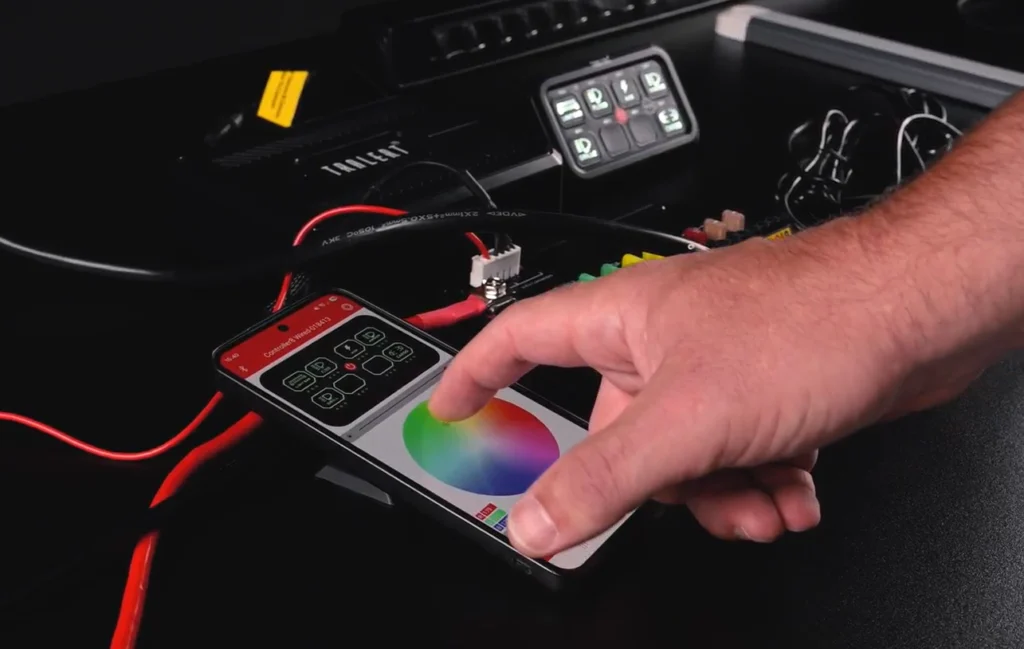
Assign a recognisable function to each button. Use the stickers supplied to label the physical controls on the light units. You can configure the controls and adjust the colour of the panel lighting via the app. According to the demonstration, the QR codes for the app are located on the inside of the control box. To pair the devices, enable Bluetooth, select the correct control box in the app and choose ‘Connect’. The app manual states that you can only establish a connection with one control box at a time.
In the video, one function is set to momentary operation: the light stays on as long as the button is pressed. Two other circuits are linked so that they switch on or off together with a single command. After configuration, truck both the physical buttons and the control via the app.
Each button mode has a different function:
| Button mode | How it works | Focal point |
|---|---|---|
| Button modeToggle | Operation: Pressing the button once activates the circuit; pressing it again deactivates it. | Point to note: Fixedon/off control for functions that must remain active at all times. |
| Buttonmode: Momentary | How it works: The circuit remains active for as long as you hold down the button. | Point to note: Check that the momentary control is suitable for the function. |
| Buttonmode: Pulsed | How it works: The circuit causes connected lighting to flash until you switch it off again. | Point to note: Checkwhether the connected light is suitable for this purpose; this is not automatically an approved warning pattern. |
For the 8PAD grouping shown, select ‘Edit Group’ in the app, choose the desired circuits, and save your selection and the group name. All circuits within a single group use the same button mode. Therefore, do not combine functions within a single group that require different modes when used separately. Then check the group via both the app and the physical panel. The app manual uses an eight-channel panel as an example; check the available options on your own model.
Would you like to connect a flashing light and warning lights that can be switched on and off with a single button? If so, you can use a suitable control group for this. Linking control units is not the same as strobe synchronisation. A control unit allows you to switch circuits together. To ensure the warning lights follow the same rhythm, use the synchronisation function of compatible lights or a suitable controller.
| Function | Meaning | What do you check? |
|---|---|---|
| Function: Synchronisation | Meaning: Strobe lights operate in a synchronised pattern with the same timing. | What do you need to check?Compatible models, pattern settings and synchronisation connection. |
| Function: Alternating | Meaning: Two groups of warning lights flash alternately. | What are you checking?Group settings and support via the lights or controller. |
| Function: Dimming | Meaning: To activate a supported lower light intensity. | What do you need to check?The dimming input, the required control signals and the available intensity settings. |
| Function: Cruise mode | Meaning: A continuously lit mode for warning lights that have this function. | What should you check?Operation, intensity and function priority as specified in the lighting documentation. |
A control panel does not automatically add these functions to a light. Furthermore, dimmable push-button lighting is not the same as dimming the connected lights. Nor is a panel’s pulsed-button mode automatically suitable as a replacement for the built-in flashing control of warning lights.
Also check the mounting, cable routing and visibility of the lights on the vehicle when in operation. Proper operation supports the use of the lighting; creating a safe workplace also requires appropriate traffic measures and working arrangements.
Would you like to connect a flashing light and warning lights to a controller, with space for additional lighting? TRALERT® assists business partners in selecting lighting, cabling and control systems. Please provide the vehicle type, the desired light functions and the article numbers of the lights so that the combination can be assessed in detail.
Take a look at our controllers and control panels, our LED beacons and LED warning lights, or get in touch for technical support.


A selection of LED lighting for trucks and trailers.

A comprehensive overview of our LED vehicle lighting and accessories.

Plug-&-play lighting kits, cabling and lighting for bodybuilders.
What TRALERT® can do for you as a partner in LED vehicle lighting.
Plug-&-play kits, cabling and lighting for 24V semi-trailers.

A selection of high-quality LED driving lights and LED bars.
Lighting, wiring harnesses and accessories for trailers.
The TRALERT® DARK LED range.

Work lights, rear lights, driving lights, beacor bars and more for DAF Trucks.

Work lights, rear lights, driving lights, beacor bars and more for Ford Trucks.

Work lights, rear lights, driving lights, beacon bars and more for Iveco.

Work lights, rear lights, driving lights, beacon bars and more for MAN.

Work lights, rear lights, driving lights, beacon bars and more for Mercedes-Benz Trucks.
Work lights, rear lights, driving lights, beacor bars and more for Renault Trucks.

Work lights, rear lights, driving lights, beacor bars and more for Scania.

Work lights, rear lights, driving lights, beacon bars and more for Volvo Trucks.
The catalogue opens in a new tab. Can’t see it?
Open the catalogue (PDF)Two questions, in 30 seconds.
TRALERT® works with a dealer network. Dealers can view current stock levels, place orders online on account and receive a product feed for their online shop or system. We assess each enquiry internally and will let you know within 1 to 2 working days whether a partnership is possible.
You can purchase TRALERT® lighting through our partners, either locally or online. Simply provide your details, and we’ll find the partner best suited to help you.
Would you prefer to find a stockist yourself?We will assess your enquiry internally. You will hear from us within 1 to 2 working days to let you know whether a partnership is possible.
We’ll let you know within 1 to 2 working days which partner will be able to assist you further.
New
The Trailerkit Configurator is now live
Put together your ‘ trailer ’ and receive the complete lighting kit packaged as a single set: lighting, marker lights and wiring harnesses, all coordinated and ready for mounting. Includes a mounting diagram and mounting instructions.
Launch the configuratorTRALERT® operates through a dealer network. Prices, stock levels and online ordering are therefore only available to business customers with an account.
We assess every enquiry internally and will let you know within 1 to 2 working days whether a partnership is possible.
For your own use?Find a stockist
Would you prefer a quote first?Add this product to your quotation request and send it off when you’re ready.